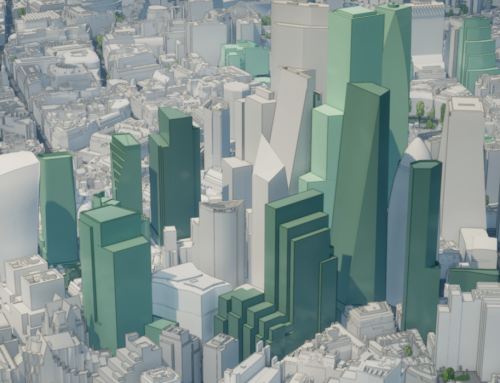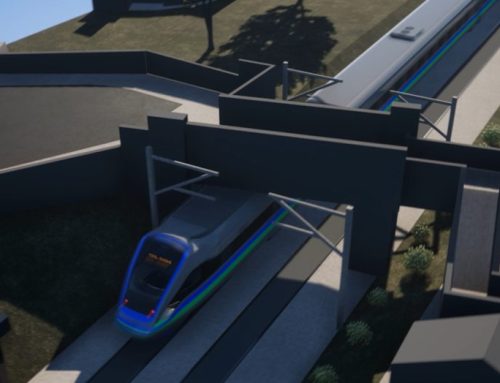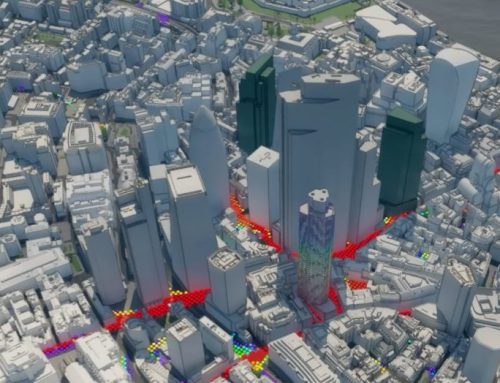

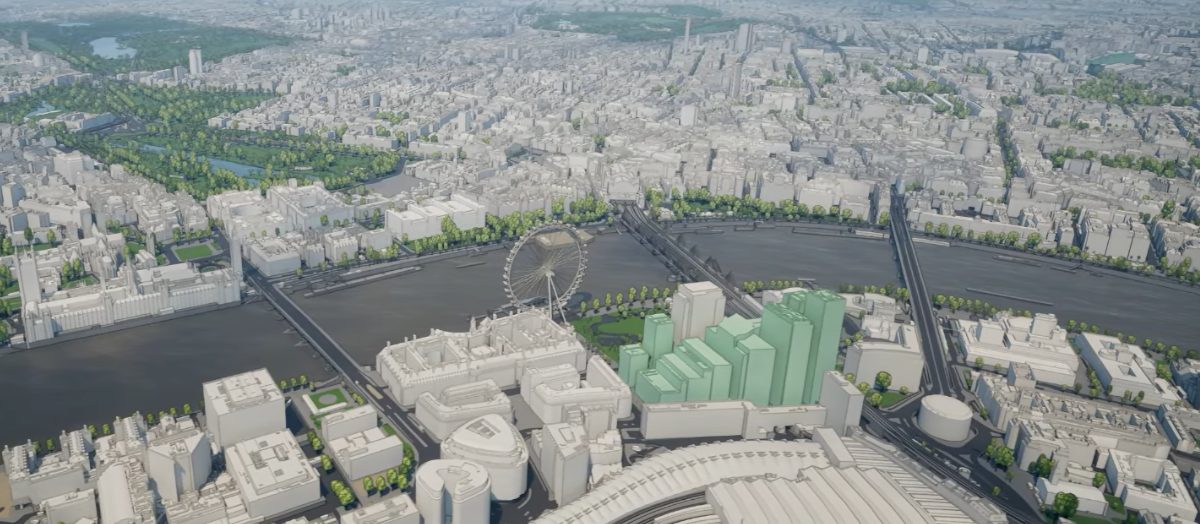
This YouTube Course will demonstrate how to master Plan.City London, a set of site evaluation & presentation tools for Architects, Urban Planners and Developers. The application includes large, accurate and up-to date 3D model of London and even the Future Skyline Layer to better understand the proposed changes in planned built environment. Customers are able to manipulate the dataset with sets of tools, build or import a 3D model, overlay the city model with 3rd party databases, run a set of urban planning studies and export results and visuals.
1. Navigating The Plan City App
This introduction details the two control systems available for navigating the 3D environment, something a user will want to do immediately after launching the application. The two available control systems are the drone mode and the orbit pan zoom control scheme. The drone mode is likely the default method and allows for movement as if the user were a drone, offering almost unlimited freedom. The Orbit/Pan/Zoom method operates differently, as it does not use the escape key to toggle between controlling the UI and the character; the mouse and UI are accessible at all times.
2. Changing The Time Of Day
This video guide, part of the Plan City London how-to series, explains how to customize the time, day, and weather settings that govern the application’s appearance. Upon launching Plan.City London defaults to a vibrant setting often characterized as a typical spring day, but the app offers full control over the visual environment.
3. Data Layers
This video tutorial focuses on working with the various data layers available within the application. Data layers are different data sets that can be overlaid on top of the 3D model of London, providing greater insight and visualization in context. Five initial data layers were released alongside Plan City 2.0: London Boroughs, Future Skyline, Protected Views, Viewing Corridors, and St Paul’s Height Grid.
4. Importing Models
The primary function of the Import Models Tool is to enable users to bring external 3D assets into Plan City. This is done with the intention of viewing them in context, conducting detailed studies, and performing analyses. Plan.City currently supports five file formats: OBJ, FBX, STL, GLTF, and GLB.
5. Sketching Buildings
This video details the use of the Building Sketch Tool, a highly interactive feature that allows for the creation of new 3D models directly within the Plan City application. This capability is a simple and powerful method for testing design hypotheses and exploring urban design options without the need to switch to external software. The tool enables the user to start drawing the building’s footprint directly on the map. The floor plan is defined by left-clicking to mark each corner.
6. Zone of Theoretical Visibility Study
This video introduces users to the ZTV Tool, a powerful analytical feature designed to assess a building’s visibility from its surroundings and, consequently, its visual impact within the city environment.
7. ViewShed Study
This video introduces the Viewshed Tool, a powerful visibility analysis feature designed to determine which parts of the environment are visible from one or more specific observation points, called emitters. This tool is essential for understanding how views are experienced from key locations like viewpoints, balconies, or observation decks within an urban environment.
8. Taking Screenshots
This video provides a detailed guide on using the Quick Screenshot Tool within the Plan.City application. This essential feature is designed to help users capture high-quality images directly from their viewports, while also managing and reusing custom camera setups for consistent visual documentation. It is described as perfect for documenting progress, capturing specific views, and creating uniform shots for presentations.
Plan.City London YouTube Course
You can watch the entire playlist as a YouTube Course here.